Choosing a vehicle tracking company in Pakistan is harder than it should be. Every provider advertises the same three things: live tracking, alerts and reports. On a sales call they all sound identical, which is why so many buyers end up disappointed a year later, tied to a system nobody enjoys using.
This guide covers what actually separates them. It starts with the kinds of companies operating here, then works through nine checks that expose the difference, what a car tracker costs in this market, and how to decide between a single car tracker and a proper fleet system. It applies whether you are fitting one car in Karachi or a hundred vehicles across Lahore and Islamabad.
The kinds of tracking companies operating in Pakistan
Most people start by searching for a ranked list of tracker companies in Pakistan, hoping one name will settle it. That list does not really exist, because the companies are not competing on the same thing. It is more useful to know the four kinds you will run into, and what each is usually good and bad at.
| Type |
Usually good at |
Usually weak at |
| Large national operators |
Coverage across cities, installation teams everywhere, long track record |
Older software, long lock-in contracts, slow support queues |
| Bank and insurance linked trackers |
Bundled with vehicle financing, no separate purchase decision |
You did not choose it, and often cannot see the data yourself |
| Local installers and resellers |
Cheap, fast, personal service, easy to reach |
Rebadged hardware, generic app, and no guarantee they exist in three years |
| Software-first platforms |
Modern app, real reporting, works with different device brands |
Fewer own installation teams, so fitting is arranged rather than in-house |
There is no single number one provider in Pakistan, and any company claiming the title is describing its own marketing rather than a measured result. A large operator can be the right answer for a fleet spread across four cities and the wrong one for eight vans in a single yard. The checks below are what separate them in practice.
1. How fast does the position actually update?
This is the first question and it filters out a surprising number of suppliers. Ask for the live update interval while a vehicle is moving, not the marketing phrase “real time”. A few seconds means you can follow a vehicle and react to a theft. A minute or more means you are looking at history. Ask to watch a vehicle move on their live map before you decide, because this single number shapes how useful everything else will be.
2. Do alerts reach the right person fast enough?
A tracking platform earns its keep through alerts, not maps. Nobody watches a screen all day. What matters is that the moment a vehicle leaves a geofence, starts outside working hours, or crosses a speed limit, the right person is told immediately on their phone. Ask how alerts are delivered, whether different people can receive different alerts, and how quickly they arrive after the event.
3. Can you immobilise a vehicle remotely?
Remote engine cut changes what happens during a theft, turning a chase into a controlled recovery once the vehicle has stopped. Not every vehicle tracking company in Pakistan supports it properly, and not every installation includes the relay it needs. If your fleet carries valuable cargo or operates at night, treat this as essential rather than optional.
4. Is the mobile app good enough to use daily?
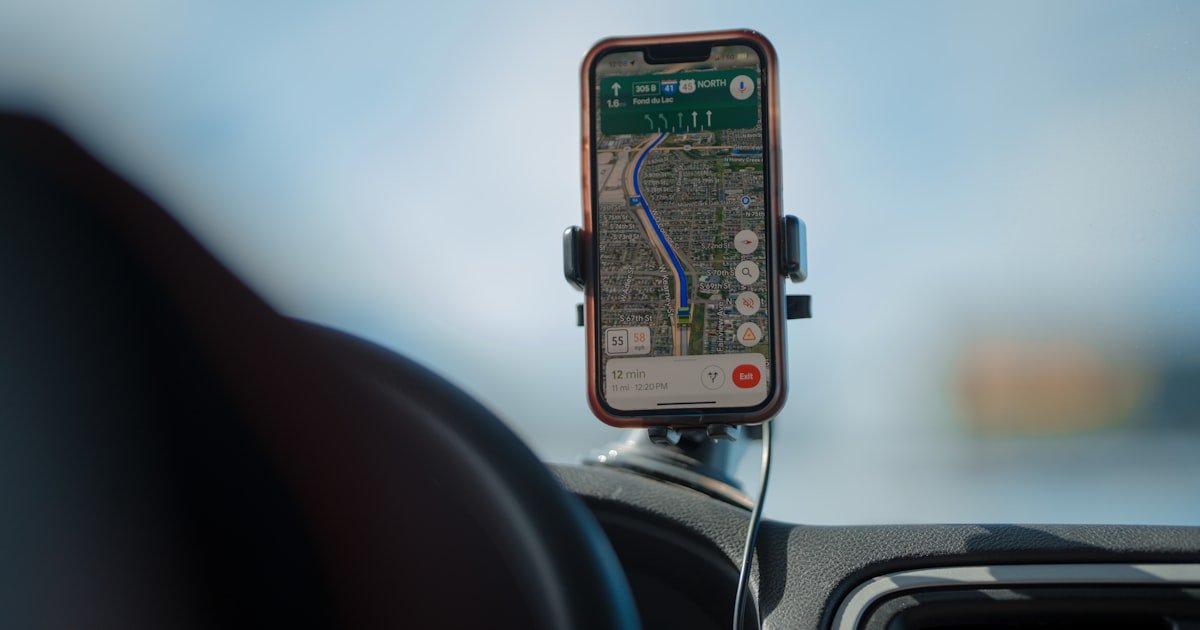
The dashboard gets demonstrated; the app gets used. Managers check vehicles from a phone, at home, in a meeting, on the road. Open the app during the demo and try to do three things: find one vehicle, replay a trip from yesterday, and check today’s alerts. If any of those takes more than a few taps, your team will quietly stop using the system.
5. What reporting do you actually get?
Reports are where tracking turns into savings, but only if they answer real questions: which vehicles idle the most, who speeds, which routes take longer than they should, how mileage compares month to month. Ask to see a real report rather than a screenshot. Our guide on how to read your fleet reports covers what a genuinely useful report looks like.
6. Who installs it, and how well?
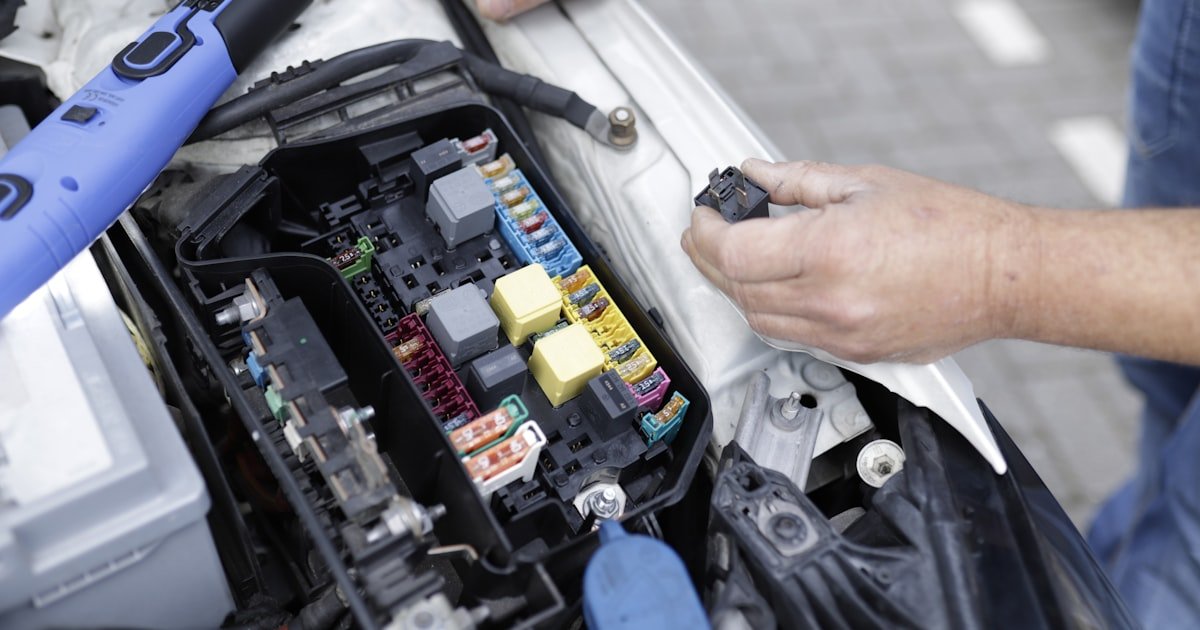
A great platform on a badly fitted device is a bad system. Installation quality decides whether the tracker survives, stays hidden from thieves, and keeps reporting when it matters. Ask who does the fitting, whether they are the company’s own technicians, how the unit is concealed, and what the response time is if a device stops reporting. Ask about coverage in the cities where your vehicles actually operate, not just the head office city.
7. What happens when something breaks?
Devices fail. Vehicles get serviced and wires get disturbed. The real test of a vehicle tracking company is the week a unit goes silent. Ask a direct question: a tracker stops reporting on a Friday afternoon, what happens next, and who pays? A supplier with a clear answer has been through it many times. A vague answer is the answer.
8. Who owns your data, and can you get it out?
Your trip history, routes and driver records are your operational record. Ask how long history is retained, whether you can export it, and whether there is an API if you ever want to connect tracking to your own systems. A provider that makes leaving difficult is telling you something about how they expect to keep your business.
9. What is the three-year total cost?
Compare total cost per vehicle over three years, including device, installation, SIM, subscription, support and the renewal rate, rather than the headline monthly figure. We break every one of these components down in our guide to vehicle tracking price in Pakistan. The cheapest first year is frequently not the cheapest three.
A simple scorecard
Score each provider out of two on the checks that matter most to you, and the picture usually becomes obvious:
| Check |
Weak |
Strong |
| Update interval |
Minutes |
Seconds |
| Alerts |
Email only, delayed |
Instant push, per-person rules |
| Engine cut |
Not offered |
Supported and installed properly |
| Mobile app |
Rarely updated |
Fast, current, actually used |
| Support |
Unclear process |
Named response time |
| Data |
Locked in |
Exportable, with an API |
What a car tracker costs in Pakistan
Price is the second question almost everyone asks, and it is where comparisons quietly go wrong. Suppliers quote different things: some price the device alone, some bundle installation, some quote a monthly subscription and mention the renewal rate only later. Three quotes can look like three different products when they are the same thing packaged differently.
Ask every provider for the same four numbers so the quotes are comparable: the one-off device cost, the installation charge, the monthly or yearly subscription per vehicle, and the renewal rate after the first year. That last one catches people out, because an attractive first-year price sometimes rises sharply afterwards. The full breakdown of what to expect is in vehicle tracking price in Pakistan.
A car tracker or a fleet tracking system?
These get sold as the same thing and they are not. A car tracker is bought for one or two vehicles, usually for theft recovery and peace of mind. A fleet tracking system assumes several vehicles, several drivers, and somebody accountable for what they cost to run.
- One or two vehicles, owner driven. A car tracker is the right buy. Location, movement alerts and recovery are the whole benefit, and paying for driver scoring you will never look at makes no sense.
- Several vehicles with employees driving them. A fleet system starts to pay for itself, because fuel, idling and driving behaviour become measurable rather than suspected.
- A mixed situation. Many businesses here run both: trackers on the owner’s cars, a fleet system on the working vehicles.
The difference is set out in more detail in GPS fleet tracking versus car trackers. If the vehicle is a motorcycle, the requirements change again, and that is covered in motorcycle GPS trackers.
Installation, city by city
Wherever the company is registered, what matters to you is whether they can fit and service a device where your vehicles actually are. Coverage is uneven: a provider with fitters in Karachi may arrange a subcontractor in Multan, which is fine until something needs replacing.
Ask three questions before signing. Do they have their own installation team in your city, or a partner. What is the turnaround for a fault in that city. And if you operate in more than one, is the service the same in each. Buyers in Karachi can start with GPS tracker options in Karachi.
Match the provider to the fleet you have
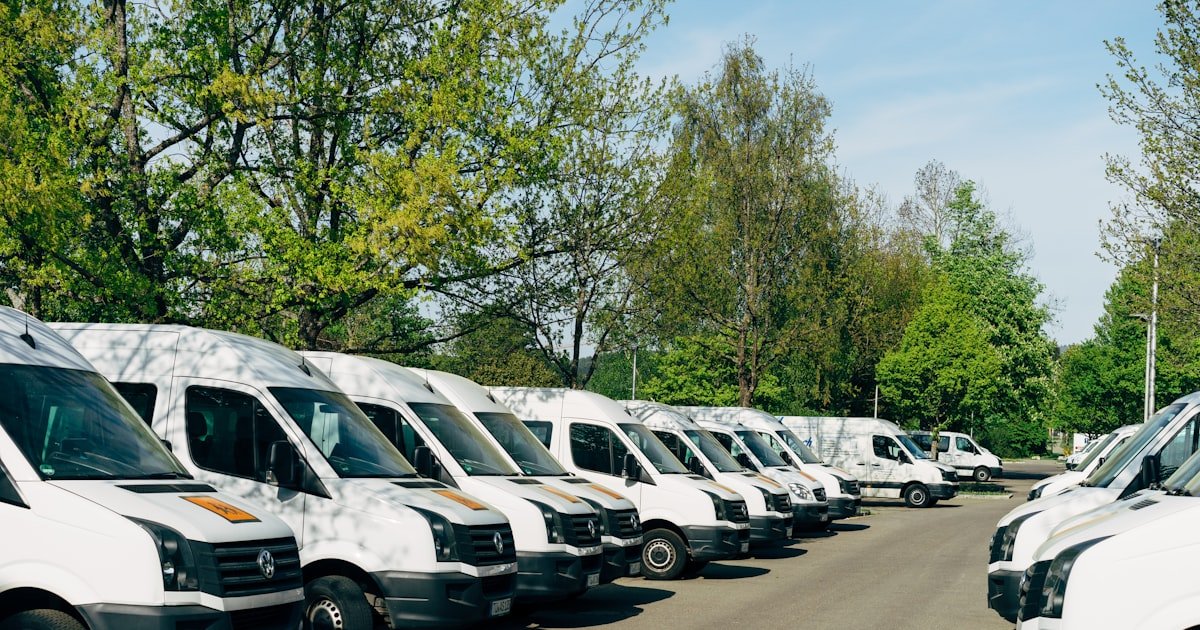
The best vehicle tracking company for a hundred-truck logistics operation is not automatically the best one for eight vans or a hundred delivery motorcycles. A logistics fleet needs strong route and trip reporting, as covered in GPS tracking for logistics and delivery fleets. A school transport operator needs parent-facing reassurance and route adherence. A rental business needs geofences and mileage. Ask each supplier how they handle your specific case, and be wary of an answer that never changes.
It is also worth asking where the company is heading. Tracking platforms improve constantly, and a provider still shipping the same interface from years ago will look further behind every year you stay with them. You can see the current Fleetile feature set on the platform page.
Frequently asked questions
What should I ask a vehicle tracking company before buying?
Ask for the live update interval while moving, how and how fast alerts are delivered, whether remote engine cut is supported, who installs the devices and where they cover, what happens when a unit fails, how long your data is retained and whether it can be exported, and the total cost per vehicle over three years including the renewal rate.
Is a bigger tracking company always better?
Not necessarily. Size can mean better coverage and stock, but it can also mean slower support and older software. Judge providers on the checks above, especially update speed, alert quality and what happens when a device fails, rather than on how long the company has existed.
How long does it take to set up tracking for a fleet?
Installation is usually the longest part, and a technician can typically fit several vehicles in a day, so a small fleet is often live within days. The software side, adding users, drawing geofences and setting alert rules, can normally be done the same day the vehicles are fitted.
Can I switch tracking providers later?
Yes, though how painful it is depends on the contract and on whether your existing provider lets you export your history. This is exactly why data ownership and contract terms belong on the checklist before you sign, not after.
Do I need tracking on every vehicle?
Most fleets get the clearest picture by tracking everything, because partial coverage leaves gaps precisely where problems hide. If budget forces a phased rollout, start with the highest-value vehicles, those carrying valuable cargo, and any that operate at night or far from base.
Which is the best vehicle tracking company in Pakistan?
There is no single best one, and a ranked list would be misleading. Large national operators, bank-linked trackers, local installers and software-first platforms are good at different things. Decide by running the nine checks above against your own situation, particularly the update interval, the alerts, and the three-year total cost.
How much does a car tracker cost in Pakistan?
It depends on the device, whether installation is included, and the subscription. The way to compare fairly is to ask every supplier for the same four numbers: device cost, installation charge, per-vehicle subscription, and the renewal rate after the first year.
Is a car tracker the same as a fleet tracking system?
No. A car tracker covers one or two vehicles and is mostly about location and theft recovery. A fleet system adds driver behaviour, fuel and idle reporting, and comparison between vehicles, which only pays off when several vehicles are driven by employees.
Can a tracker be installed the same day in Karachi or Lahore?
Often yes in the larger cities, where most providers keep their own fitters. It is worth confirming for your specific area, and worth asking what the turnaround is for a fault rather than only for the first installation.
Are top 10 tracking company lists in Pakistan reliable?
Treat them carefully. Many are paid placements or are written by one of the companies listed. A list can be a useful starting point for names, but the ordering rarely reflects anything measured, so verify against your own checks.
Which is the number one vehicle tracking provider in Pakistan?
Nobody can answer that honestly, and it is worth knowing why. There is no independent body ranking vehicle tracking providers in Pakistan, no audited subscriber numbers and no shared standard for uptime or recovery rates. Every company describing itself as the number one provider is the source of that claim. What you can check yourself is concrete: who installs the device, whether support answers in your own city, whether the platform belongs to the company or is resold, and what happens to your data if you leave. Those answers separate providers far more reliably than a ranking does.
What is the best car tracker company in Pakistan?
Car tracker company and vehicle tracking company usually mean the same thing here, and the difference that matters is not the label but the scope. A company selling a car tracker to an individual owner is solving theft and location. A company running fleets is also solving driver behaviour, fuel, maintenance and reporting. Judge a car tracker company on the checklist above rather than on the size of its advertising, and ask to see the platform running on a real vehicle before you buy anything.
Put us through the checklist
The fairest way to compare any vehicle tracking company is to run it through the nine checks above with a live system in front of you. Get a Fleetile demo and ask us every one of them.